

systemd as a foundation
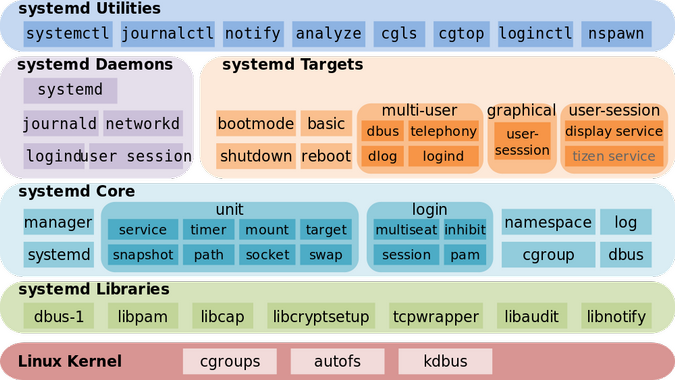
For the vast majority of modern Linux distributions, systemd is now the standard init system and system manager. It’s the first process started during boot – process ID 1 – and is responsible for bringing the rest of the system online. This is a big shift from older systems like SysVinit and Upstart, which had become increasingly complex and difficult to maintain.
The shift to systemd wasn’t without its critics, and the debates about its architecture are still around in some circles. But its core philosophy – to provide a comprehensive suite of tools for managing system resources and services – has proven remarkably effective. It's designed to be more efficient, faster, and more feature-rich than its predecessors.
systemd uses 'units' to manage the system. These are plain-text configuration files that describe services, sockets, mount points, or timers. I'll focus on service units here because they're what you'll touch most often, but the logic applies to the other types too.
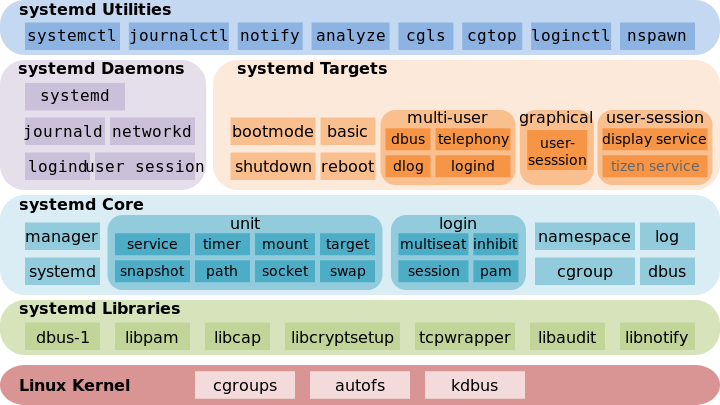
how units work
Systemd units are the fundamental building blocks for managing your Linux system. They encapsulate everything needed to define and control a system component. These aren't just about services; they cover a wide range of system aspects.
There are several different types of systemd units, each designed for a specific purpose. Service units, as we've mentioned, manage daemons and applications. Socket units manage network sockets, allowing for socket activation. Target units group other units together, defining system states like 'multi-user.target' for a command-line system or 'graphical.target' for a desktop environment.
Other unit types include timer units for scheduled tasks, mount units for managing file systems, swap units for swap spaces, and automount units for on-demand mounting. Configuration for these units is stored in plain text files, typically located in `/etc/systemd/system/` for custom services or `/lib/systemd/system/` for those provided by packages.
anatomy of a service file
A systemd service unit file is divided into three main sections: `[Unit]`, `[Service]`, and `[Install]`. Each section defines specific aspects of the service’s behavior and management. Understanding these sections is paramount for creating and customizing services.
The `[Unit]` section contains metadata about the service, such as its description, documentation links, and dependencies. Directives like `Description` provide a human-readable explanation. `After` and `Requires` are crucial for defining the order in which services start – `After` specifies that this service should start after another, while `Requires` means this service won’t start if the other isn’t available.
The `[Service]` section controls how the service is executed. `ExecStart` defines the command to start the service. `Restart` specifies when systemd should attempt to restart the service if it fails; options include `always`, `on-failure`, and `no`. `User` defines the user account under which the service will run, enhancing security. `Type` specifies how systemd manages the service, with options like `simple`, `forking`, `oneshot`, and `dbus`.
Finally, the `[Install]` section defines how the service is enabled and started on boot. The `WantedBy` directive specifies which target the service should be started under. For example, `WantedBy=multi-user.target` means the service will start when the system enters the multi-user mode.
- [Unit] handles metadata and dependencies
- [Service]: Execution behavior and settings
- [Install]: Installation and startup details
Example systemd Service File for Python Application
Creating a systemd service file allows you to manage your Python applications as system services with automatic startup, restart capabilities, and proper logging integration. The service file should be placed in /etc/systemd/system/ with a .service extension.
[Unit]
Description=Python Application Service
After=network.target
Wants=network-online.target

[Service]
Type=simple
User=appuser
Group=appuser
WorkingDirectory=/opt/myapp
ExecStart=/usr/bin/python3 /opt/myapp/main.py
Restart=on-failure
RestartSec=5
Environment=PYTHONPATH=/opt/myapp
StandardOutput=journal
StandardError=journal

[Install]
WantedBy=multi-user.target
The ExecStart directive specifies the exact command to run your Python script, while Restart=on-failure ensures the service automatically restarts if it crashes or exits with a non-zero status. The RestartSec=5 adds a 5-second delay between restart attempts to prevent rapid restart loops. After creating this file, enable and start the service with 'sudo systemctl enable myapp.service' and 'sudo systemctl start myapp.service'.
essential systemctl commands
The `systemctl` command is your primary interface for interacting with systemd. It allows you to start, stop, restart, and check the status of services, as well as enable them to start automatically on boot. Mastering these commands is fundamental to Linux service management.
To start a service, use `systemctl start `. To stop it, use `systemctl stop `. Restarting a service is done with `systemctl restart `. The `systemctl status ` command provides detailed information about the service, including its current state, recent logs, and any errors. This is your go-to command for troubleshooting.
Enabling a service with `systemctl enable ` creates symbolic links that ensure the service starts automatically during boot. Disabling a service with `systemctl disable ` removes those links. Crucially, enabling a service doesn't start it, it only configures it to start on boot. If you've made changes to a service file, you’ll need to run `systemctl daemon-reload` to tell systemd to re-read the configuration files before restarting the service.
handling dependencies
Systemd provides a robust system for managing service dependencies, ensuring that services start in the correct order and that critical dependencies are met. This is crucial for maintaining system stability and preventing errors. You define dependencies within the `[Unit]` section of a service file.
The `Requires` directive specifies a hard dependency – the service won’t start if the required service is unavailable. `Wants` expresses a weaker dependency – the service will start even if the wanted service fails to start, but systemd will attempt to start the wanted service first. `Before` and `After` control the startup order; `Before` ensures a service starts before another, while `After` ensures it starts after.
Systemd also uses 'targets' to group services together. Targets represent system states. `multi-user.target` corresponds to a command-line environment, while `graphical.target` represents a graphical desktop environment. By specifying `WantedBy=` in the `[Install]` section, you can associate your service with a specific target, ensuring it starts when that target is reached.
- Requires is a hard dependency—the service won't start without it
- Wants: Weak dependency – service will start even if it's missing
- Before/After: Control startup order
logging with journalctl
Systemd’s journal, accessed through the `journalctl` command, provides a centralized and structured logging system. It’s a significant improvement over traditional log files, offering more efficient storage, querying, and analysis. It stores logs in a binary format, making them more compact and searchable.
To view logs for a specific service, use `journalctl -u `. To follow logs in real-time, use `journalctl -f -u `. You can filter logs by time using `--since` and `--until` options, for example, `journalctl --since "2026-01-01"`. The `-b` option shows logs from the current boot.
Unlike traditional log files scattered across the system, `journalctl` provides a single point of access to all system logs. This makes troubleshooting much easier. It’s also worth noting that `journalctl` can be configured to persist logs across reboots, ensuring that you have a historical record of system events.
advanced techniques
Beyond the basics, systemd offers several advanced features that can significantly enhance your system management capabilities. These include timers, socket activation, path activation, and resource control.
Timers allow you to schedule tasks to run at specific times or intervals, similar to cron but with more flexibility and integration with systemd. Socket activation defers the startup of a service until a connection is made to its socket, reducing resource usage. Path activation starts a service when a specific file or directory is accessed. Resource control allows you to limit the CPU and memory usage of a service using directives like `CPUShares` and `MemoryLimit`.
For performance analysis, `systemd-analyze` provides insights into boot times and service startup times. While we won't delve into exhaustive detail here, these features demonstrate the power and versatility of systemd. Exploring these options can lead to more efficient and responsive systems.
No comments yet. Be the first to share your thoughts!