

The shift to systemd
For a long time, managing services on Linux was… complicated. Systems like SysVinit, while functional, were essentially a collection of scripts executed in a specific order. This meant slow boot times and a lack of robust dependency management. Upstart attempted to address some of these issues, but ultimately, it didn't gain the widespread adoption needed to become the standard. Enter systemd.
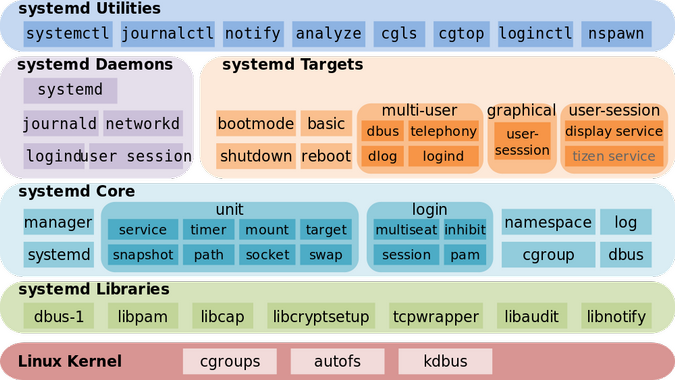
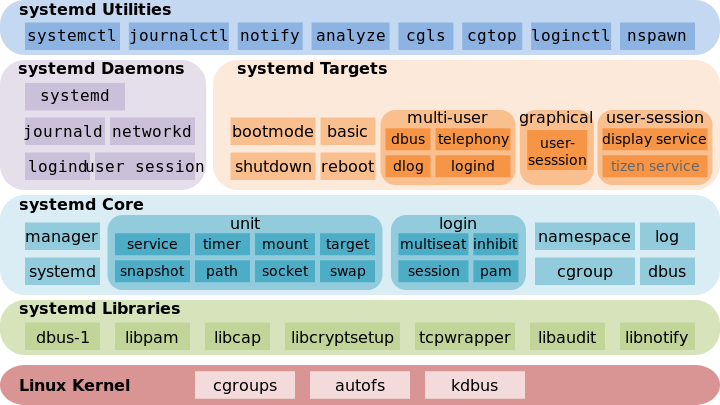
systemd handles more than just the boot process. It standardizes how we start and stop services while managing parallel startup and unified logging. It's a move away from the fragile script-based systems of the past toward something more predictable.
When systemd first appeared, it wasn't without controversy. Some argued it was too complex, too monolithic, and violated the Unix philosophy of doing one thing well. However, the benefits – particularly the improved reliability and manageability – have led to widespread adoption. By 2026, systemd is deeply ingrained in nearly every major distribution, from Debian and Ubuntu to Fedora and Red Hat. It’s the foundation of modern Linux service management.
The move to systemd addressed a real need for a more modern and robust system initialization process. It’s not simply an upgrade, but a fundamental change in how Linux systems operate and are maintained. While debates linger, the practical advantages have largely silenced the loudest critics.
Controlling services with systemctl
The `systemctl` command is your primary interface for interacting with systemd. It allows you to control services, check their status, and manage their behavior. Think of it as the central control panel for your system’s services. Mastering `systemctl` is essential for any Linux administrator or developer.
The most basic commands are straightforward: `systemctl start `, `systemctl stop `, and `systemctl restart `. To check the status of a service, use `systemctl status `. Crucially, `systemctl enable ` configures a service to start automatically at boot. Conversely, `systemctl disable ` prevents it from starting on boot. These are the commands you’ll use constantly.
Services in systemd are managed as 'units'. These units aren't limited to just services; they can also represent sockets, timers, mount points, and more. `systemctl is-active ` tells you if a service is currently running, while `systemctl is-enabled ` indicates whether it’s set to start on boot. For example, `systemctl status nginx` will show you if the Nginx web server is running and its recent logs. To stop it, you'd use `systemctl stop nginx`.
You can also mask a service with `systemctl mask `. This effectively prevents the service from being started, even manually. It's a stronger form of disabling, useful for services you absolutely don't want running. `systemctl unmask ` reverses this.
Essential systemctl and journalctl Commands
Modern Linux distributions use systemd as their init system, making systemctl and journalctl the primary tools for service management and log analysis. These commands provide comprehensive control over system services, from basic start/stop operations to advanced logging and monitoring capabilities.
# Start a service immediately
sudo systemctl start nginx

# Enable a service to start automatically at boot
sudo systemctl enable ssh

# Check the current status of a service
sudo systemctl status postgresql

# Quickly check if a service is currently running
sudo systemctl is-active nginx

# Disable a service from starting automatically at boot
sudo systemctl disable nginx

# Stop a running service
sudo systemctl stop nginx

# Restart a service (stop then start)
sudo systemctl restart postgresql

# Reload service configuration without stopping
sudo systemctl reload nginx

# View recent log entries for a specific service
sudo journalctl -u nginx

# Follow live log output for a service
sudo journalctl -u ssh -f

# View logs from the last boot
sudo journalctl -b

# Show logs with timestamps in local time
sudo journalctl --since "2026-01-01 00:00:00"
The systemctl commands shown above cover the most common service management tasks. The 'start' and 'stop' commands control immediate service state, while 'enable' and 'disable' determine boot-time behavior. The 'status' command provides detailed information about service state, recent log entries, and resource usage. For log analysis, journalctl offers powerful filtering options, allowing you to view logs by service unit (-u), time range (--since), or follow live output (-f). These tools work together to provide complete visibility and control over your Linux system's services.
How unit files work
Systemd unit files define how a service, socket, or other unit is managed. They're typically located in `/etc/systemd/system/` for custom units or `/lib/systemd/system/` for those provided by packages. Understanding their structure is key to customizing service behavior.
A unit file is divided into sections: `[Unit]`, `[Service]`, and `[Install]`. The `[Unit]` section contains metadata like the service description and dependencies. `Description=My Awesome Service` is a common example. `After=network.target` and `Requires=postgresql.service` specify dependencies – this service starts after the network is up and requires PostgreSQL to be running.
The `[Service]` section defines how the service is executed. `ExecStart=/usr/bin/my-script` specifies the command to run. `Restart=on-failure` tells systemd to restart the service if it crashes. You also define the user and group the service runs as with `User=myuser` and `Group=mygroup`. The `[Install]` section defines how the service is enabled at boot. `WantedBy=multi-user.target` means the service will start when the system enters multi-user mode.
To create a unit file for a custom script, simply create a file (e.g., `my-script.service`) in `/etc/systemd/system/` with the appropriate sections and directives. After creating or modifying a unit file, you must run `systemctl daemon-reload` to tell systemd to re-read the unit files.
Advanced operations
Beyond the basic commands, `systemctl` offers powerful features for advanced system management. `systemctl show ` displays detailed information about a unit, including its configuration, status, and dependencies. It’s a great way to understand exactly how a service is set up.
`systemctl edit ` is incredibly useful. Instead of directly modifying the original unit file (which can be overwritten during updates), it creates an override file in `/etc/systemd/system/.d/`. This allows you to customize the service without risking your changes being lost.
As mentioned before, `systemctl mask ` and `systemctl unmask ` provide a strong way to disable or re-enable a service. Managing dependencies is also critical. `Requires`, `Wants`, `Before`, and `After` let you define the order in which services start and stop. `Before` and `After` are particularly useful for ensuring services start in the correct order.
While less common now, `systemctl isolate ` allows you to switch between different runlevels (or 'targets' in systemd terminology). However, most modern systems primarily rely on multi-user.target.
- systemctl show: See every variable and property set for a unit.
- systemctl edit: Creates override files for customization.
- systemctl mask/unmask: Strongly disables or enables a service.
- Dependencies: Control service startup order with `Requires`, `Wants`, `Before`, and `After`.
Logging with journalctl
Traditional Linux logging often involved scattered log files in `/var/log`. systemd’s journal, accessed via `journalctl`, offers a centralized and structured approach to logging. It’s more efficient, easier to search, and provides richer information than older methods.
The basic command, `journalctl`, displays all logs. `journalctl -u ` filters logs for a specific service (e.g., `journalctl -u nginx`). `journalctl -f` follows the logs in real-time, similar to `tail -f`. `journalctl -b` shows logs from the current boot. You can also filter by time: `journalctl --since “2026-01-01”` and `journalctl --until “2026-01-02”`.
Filtering and searching is powerful. You can combine options, like `journalctl -u nginx --since “yesterday”`. The journal stores logs in binary format, making them more compact and efficient. It also supports structured data, allowing you to query logs based on specific fields.
Logs can be stored persistently (on disk) or in volatile memory (RAM). Persistent storage ensures logs survive reboots, while volatile storage is faster but loses logs on shutdown. The configuration for this is found in `/etc/systemd/journald.conf`.
Essential systemctl and journalctl Commands
Modern Linux distributions use systemd as their init system, making systemctl and journalctl the primary tools for service management and log analysis. These commands provide comprehensive control over system services and offer powerful logging capabilities that replace traditional syslog approaches.
# Check service status
sudo systemctl status nginx

# Start, stop, and restart services
sudo systemctl start nginx
sudo systemctl stop nginx
sudo systemctl restart nginx

# Enable/disable services at boot
sudo systemctl enable nginx
sudo systemctl disable nginx

# Reload service configuration without restart
sudo systemctl reload nginx

# View all active services
sudo systemctl list-units --type=service --state=active

# View failed services
sudo systemctl list-units --type=service --state=failed

# Follow nginx service logs in real-time
journalctl -u nginx -f

# View logs for specific date range
journalctl --since "2026-01-01" --until "2026-01-02"

# Show only error-level messages
journalctl -p err

# View logs from previous boot
journalctl -b -1

# View logs with timestamps and follow
journalctl -u nginx -f --since today

# Show kernel messages
journalctl -k

# View logs in reverse order (newest first)
journalctl -r

# Limit output to last 50 lines
journalctl -n 50
The systemctl command manages service states and configurations, while journalctl provides structured access to systemd's journal logs. The -f flag enables real-time log following, date ranges allow targeted log analysis, and priority levels help filter messages by severity. These tools work together to provide complete visibility and control over your Linux system's services and their operational status.
journalctl: Advanced Log Analysis
`journalctl` offers several advanced features for in-depth log analysis. The `_SYSTEMD_UNIT` environment variable is particularly useful for filtering logs within scripts. For example, you can use it to automatically filter logs for the current service.
`journalctl -o` lets you change the output format. `journalctl -o json` displays logs in JSON format, which is ideal for parsing with scripts. `journalctl -o verbose` provides a more detailed output. These options are invaluable for automating log analysis and integration with other tools.
You can forward logs to a remote syslog server using `journalctl --forward-to=syslog`. This is useful for centralized logging and security monitoring. Managing disk space used by the journal is also important. `journalctl --disk-usage` shows the current disk usage, and `journalctl --vacuum-size=1G` limits the journal to 1GB.
Understanding these advanced features allows you to extract maximum value from your system logs, making troubleshooting and monitoring much more effective.
No comments yet. Be the first to share your thoughts!