

Pick the right linux file management
Before you start moving files around, it helps to understand that "file management" in Linux isn't a single program. It is a collection of commands and tools that handle creation, modification, and organization. Whether you are a sysadmin or a new user, the core operations remain the same: creating directories, changing permissions, and navigating the filesystem.
Know your filesystem
Linux treats everything as a file, including hardware devices. Your primary filesystem is usually ext4 or xfs, mounted at /. Understanding the hierarchy is critical. The /home directory holds user data, while /etc stores configuration files. If you manage files in the wrong place, you risk breaking system settings or losing data during updates.
Choose your interface
You have two main paths for file management:
- Command Line Interface (CLI): Tools like
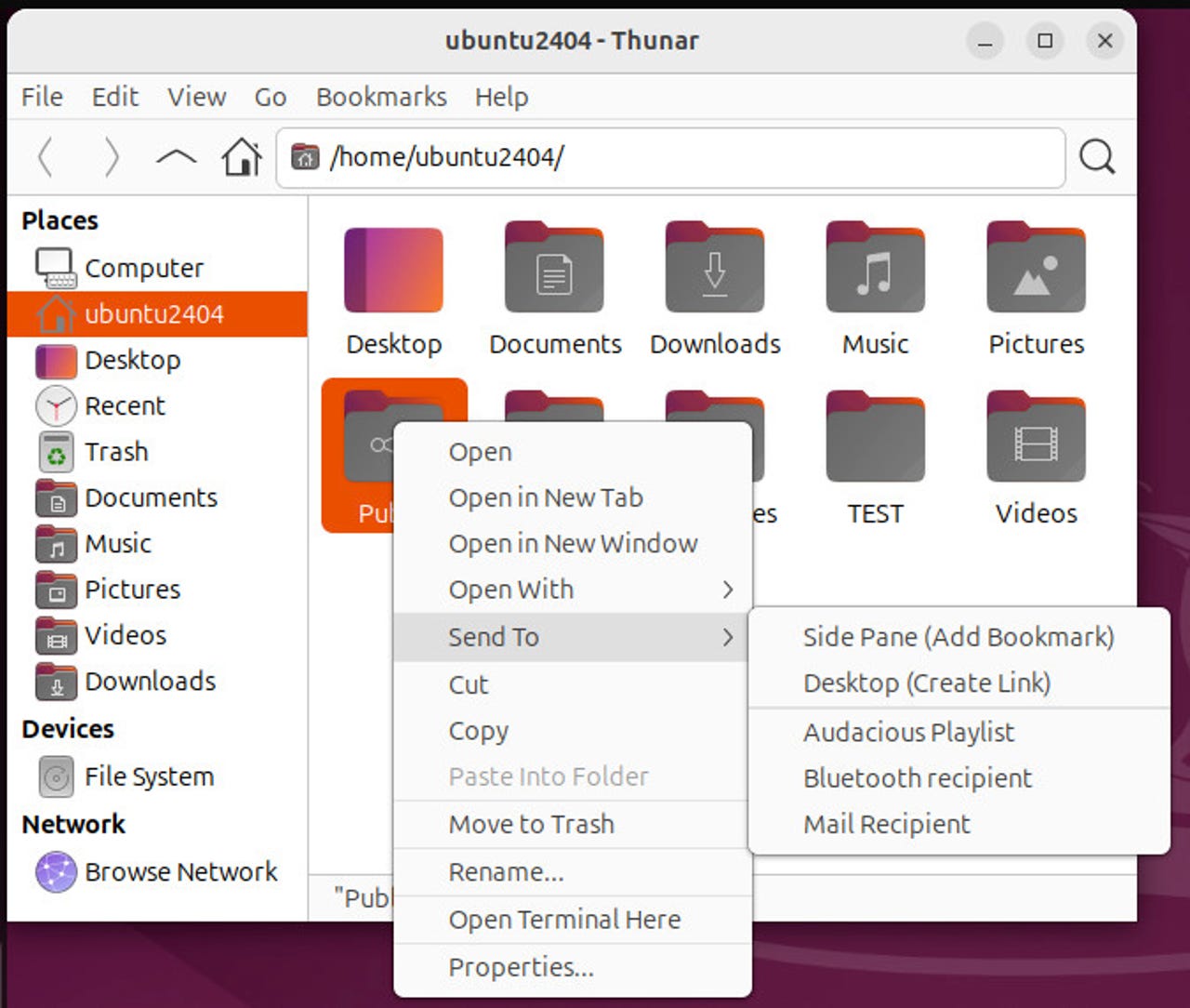
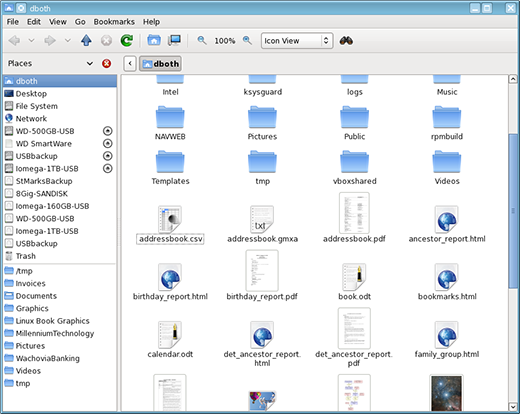
ls,cp,mv, andrm. This is the most powerful and efficient method, especially for servers or remote management. It uses less resources and can be scripted. - Graphical User Interface (GUI): Desktop environments like GNOME or KDE provide file managers (e.g., Nautilus, Dolphin). These are intuitive for browsing but less precise for bulk operations or automation.
For this guide, we focus on the CLI because it works everywhere Linux runs. If you are new, start with the GUI to get comfortable, then gradually shift to the terminal for speed and control.
Check your permissions
Linux uses a strict permission model. Before you can modify a file, you must have the right access. The ls -l command shows these permissions. If you see "Permission denied," you likely need sudo or to change the file ownership using chown. Never run file commands as root unless absolutely necessary, as one typo can delete your system.
Understand the tools
The basic commands are:
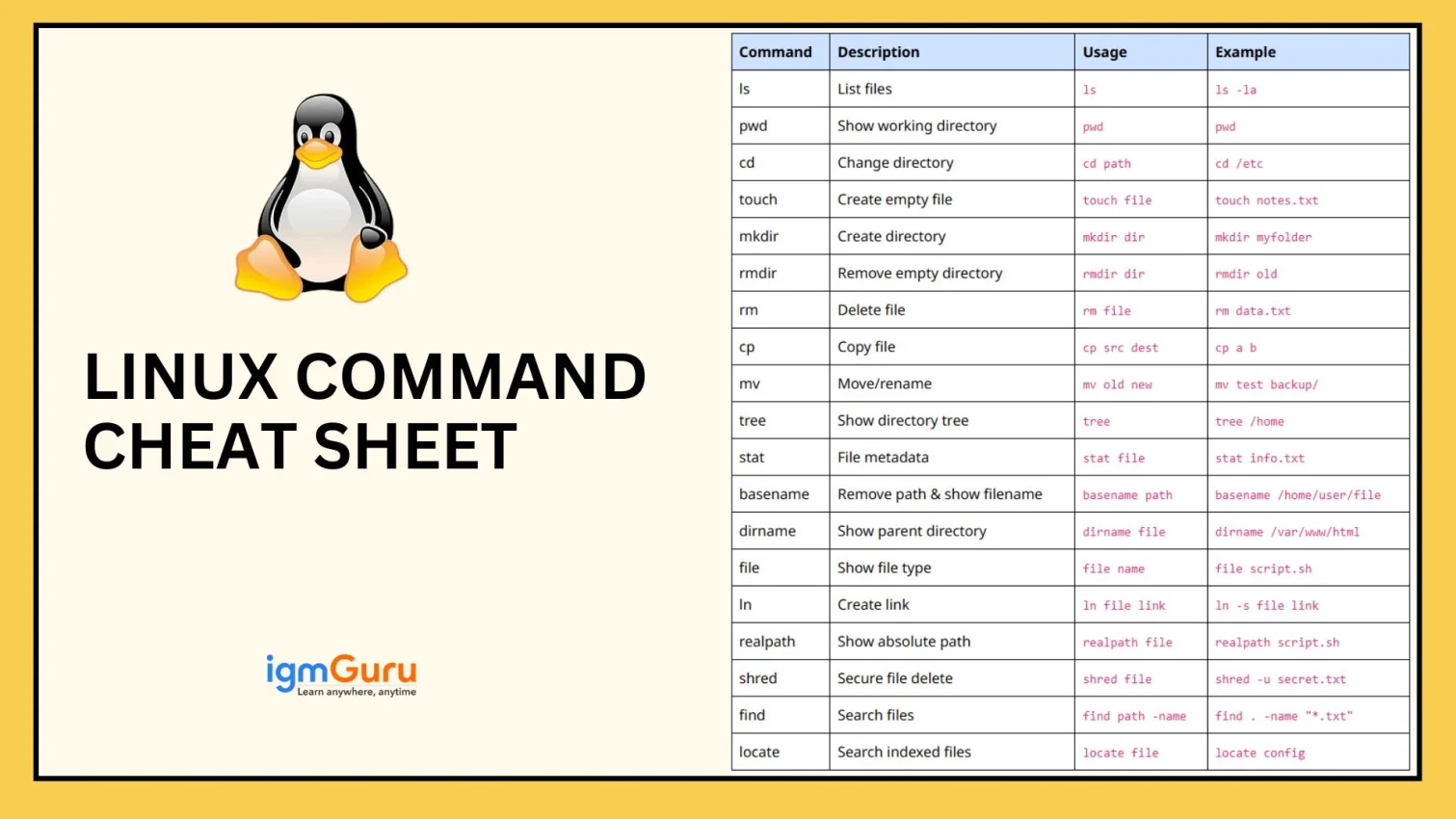
ls: List files and directories.cd: Change directory.mkdir: Create a new directory.cp: Copy files.mv: Move or rename files.rm: Remove files or directories.chmod: Change file permissions.
These tools are the foundation of Linux file management. Mastering them allows you to navigate and organize your system efficiently, regardless of the desktop environment you use.
Run linux file management safely
Mastering Linux File Management works best as a clear sequence: define the constraint, compare the realistic options, test the tradeoff, and choose the path with the fewest hidden costs. That order keeps the advice usable instead of decorative. After each step, pause long enough to check whether the recommendation still fits the reader's actual situation. If it depends on perfect timing, unusual access, or a best-case budget, include a simpler fallback.
Mistakes that break the result
File management in Linux is powerful, but it is also unforgiving. Unlike graphical interfaces that offer undo buttons and confirmation dialogs, Linux commands execute immediately. A small typo or a misunderstood flag can delete years of work in seconds. This section highlights the specific errors that cause data loss or system instability, helping you avoid the most common pitfalls.
Deleting files you didn't intend to remove
The most frequent mistake is using rm with incorrect paths or wildcards. Beginners often type rm -r * inside a directory, thinking it will only remove contents. If you are in the wrong directory, or if you have a leading space before the asterisk, you might delete your home directory or system files. Always verify your current location with pwd and list files with ls before deleting. Use rm -i to interactively confirm each deletion, or use trash-cli to send files to a recycle bin instead of permanent deletion.
Misunderstanding permission flags (especially 777)
Another critical error is setting overly permissive file permissions. The command chmod 777 grants read, write, and execute access to everyone. This is a major security risk, especially for web servers or shared systems. It allows any user on the system to modify or delete your files. Instead, use chmod 644 for files (owner can read/write, others can only read) and chmod 755 for directories. Understanding these numeric codes prevents accidental exposure of sensitive data.
Ignoring case sensitivity
Linux file systems are case-sensitive. File.txt, file.txt, and FILE.TXT are three different files. A common mistake is trying to move or copy a file using the wrong case, resulting in "file not found" errors. This often happens when moving files from Windows-based systems (which are case-insensitive) to Linux. Always double-check the exact filename and case when using commands like mv or cp.
Overwriting files without notice
Commands like cp and mv silently overwrite existing files if a destination file with the same name already exists. There is no warning prompt by default. To prevent accidental data loss, alias these commands to include the -i (interactive) flag in your .bashrc or .zshrc configuration file. This ensures you are prompted to confirm overwrites every time.
No comments yet. Be the first to share your thoughts!