

Filesystem choices and 2026 trends
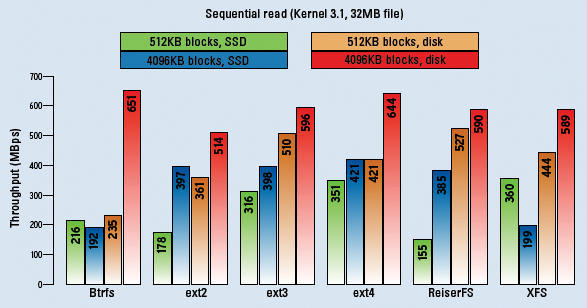
Ext4 remains the standard for most users because it rarely breaks. But as we move toward 2026, its limits are obvious on multi-terabyte arrays. XFS handles large files better, though metadata operations still lag behind newer alternatives.
Btrfs is gaining traction, offering features like snapshots, copy-on-write, and built-in RAID support. These features are particularly attractive for system administrators looking for data integrity and flexibility. The Clear Linux distribution, for example, defaults to Btrfs, recognizing its potential benefits, especially with their focus on reproducible builds and rapid updates. They’ve specifically optimized Btrfs for their workload, and it’s a good case study for seeing what’s possible.
ZFS on Linux is a bit of a wildcard. While incredibly powerful and feature-rich, licensing complexities and potential compatibility issues continue to limit its widespread adoption. I'm hesitant to recommend it as a default choice, though it remains a strong option for those willing to navigate the potential hurdles. The rise of NVMe SSDs is also influencing filesystem choices, as many modern filesystems are designed to take advantage of the speed and low latency of flash storage.
I/O schedulers
I/O schedulers control how your disk handles requests. Most modern kernels have moved away from the old CFQ (Completely Fair Queuing) in favor of multiqueue schedulers like kyber or mq-deadline. If you're still on an older kernel, CFQ might be your default, but it often struggles with latency under heavy load.
Understanding your workload is key to choosing the right scheduler. If you have a lot of sequential reads and writes – like a video editing server – Deadline might be a better choice, prioritizing requests based on deadlines. For workloads with mostly random reads, such as a database server, MQ-DEADLINE often provides the best performance, particularly with SSDs. NOOP is the simplest scheduler and can be effective for SSDs, as they handle request reordering internally.
You can check your current scheduler with `cat /sys/block/sdX/queue/scheduler`, where `sdX` is your disk device. Changing it is done with `echo scheduler_name > /sys/block/sdX/queue/scheduler`. Remember that these changes aren’t persistent across reboots; you’ll need to configure it through your distribution’s systemd services or similar methods.
- Check if your workload is sequential or random before switching.
- Test different schedulers: Experiment to see which performs best for your specific use case.
- Monitor performance: Use tools like `iotop` to observe the impact of scheduler changes.
Mount options
Mount options allow you to fine-tune filesystem behavior. `noatime` and `nodiratime` are popular choices, disabling updates to access timestamps, reducing write operations. `discard` enables TRIM support for SSDs, telling the drive which blocks are no longer in use, improving performance and lifespan. However, be aware that `discard` can sometimes cause performance regressions, especially on older SSDs.
`barrier` ensures data consistency by forcing writes to disk in a specific order, but it comes at a performance cost. `data=writeback` can significantly improve write performance by allowing the filesystem to reorder writes, but it carries a risk of data loss in the event of a power failure or system crash. Use this option with extreme caution, and only if you have a robust backup strategy.
To make mount options permanent, you need to edit `/etc/fstab`. Each line defines a filesystem and its mount options. For example: `/dev/sda1 / ext4 defaults,noatime,discard 0 1`. The `defaults` option includes a set of commonly used options. It’s crucial to understand what each option does before modifying `/etc/fstab`, as incorrect entries can prevent your system from booting.
Tuning ext4 with tune2fs
For ext4 filesystems, `tune2fs` is a powerful tool for adjusting various parameters. Reserved blocks are a percentage of the filesystem reserved for the root user, preventing fragmentation. The inode ratio determines the number of inodes (metadata entries) per block. Adjusting these values can optimize performance based on your usage patterns.
If you have a filesystem with many small files, increasing the inode ratio might be beneficial. Conversely, if you have a filesystem with large files, reducing the inode ratio can free up space for data. `tune2fs -l /dev/sda1` will show you the current values. Remember that making incorrect adjustments can lead to data loss or filesystem corruption. Always back up your data before making changes.
To change the reserved blocks percentage, use `tune2fs -m X /dev/sda1`, where `X` is the desired percentage. To change the inode ratio, use `tune2fs -i X /dev/sda1`, where `X` is the desired ratio. You can revert changes by simply running `tune2fs -l` to see the current settings and then adjusting them back to their original values.
SSD and NVMe considerations
Optimizing for SSDs and NVMe drives requires a different approach than traditional HDDs. Ensure your kernel and filesystem drivers are up to date to take full advantage of their capabilities. TRIM/discard support is essential for maintaining SSD performance over time. As mentioned earlier, the `discard` mount option enables TRIM, but monitor its impact on performance.
NVMe drives offer significantly higher performance than SATA SSDs. Queue depths play a crucial role in maximizing NVMe performance. Modern kernels generally handle queue depth optimization automatically, but it’s worth verifying that your system is configured correctly. NVMe namespaces allow you to partition a single NVMe drive into multiple logical volumes, potentially improving performance and isolation.
Stick to Kernel 6.6 or newer. These versions improved NVMe error handling and throughput. If you're on an older LTS release, you're likely missing out on significant IOPS gains.
Monitoring with iotop and blktrace
`iotop` is a valuable tool for identifying which processes are generating the most I/O. It’s similar to `top`, but focuses specifically on disk activity. This can help you pinpoint resource-intensive applications that might be causing performance bottlenecks. `blktrace` is a more advanced tool that captures detailed information about block device I/O events.
Interpreting `blktrace` output can be challenging, but it provides a wealth of data about I/O latency, queue lengths, and request sizes. It allows you to diagnose subtle performance issues that might not be visible with `iotop`. You can use tools like `btt` (Block Trace Toolkit) to analyze `blktrace` output. `hdparm` can also be useful, but be extremely cautious when using it, as incorrect options can potentially damage your drives.
For example, running `iotop -o` will only show processes actively performing I/O. `blktrace` requires root privileges and careful analysis of its output, but it can reveal hidden performance bottlenecks. Remember to stop `blktrace` after collecting enough data, as it can generate large trace files.
- Use `iotop` to identify I/O-intensive processes.
- Use `blktrace` to capture detailed I/O events.
- Analyze `blktrace` output with `btt` to diagnose performance issues.
Btrfs optimizations
Btrfs offers unique optimization opportunities. RAID configurations within Btrfs can significantly impact performance. RAID1 and RAID10 provide redundancy and performance benefits. RAID5/6 are available but are generally not recommended due to write hole issues and performance concerns. Subvolume management is also key; creating separate subvolumes for different types of data can improve performance and simplify snapshots.
Compression algorithms can reduce disk space usage and potentially improve performance, especially with slower storage. LZO is a fast but less effective compression algorithm, while Zstd offers a better compression ratio with a reasonable performance overhead. Monitoring Btrfs health is crucial, as it's a more complex filesystem than ext4. Use the `btrfs check` command to scan for errors.
Btrfs scrubbing periodically checks the filesystem for errors and repairs them. Configure a regular scrubbing schedule to ensure data integrity. Be aware that scrubbing can be resource-intensive, so schedule it during off-peak hours. While advanced features like transparent compression and deduplication are available, they come with performance trade-offs that must be carefully considered.
- Choose the appropriate RAID configuration for your needs.
- Utilize subvolumes to organize data and simplify snapshots.
- Try Zstd compression for a good balance of speed and space, or LZO if you need the lowest CPU overhead.
- Schedule regular Btrfs scrubs to maintain data integrity.




No comments yet. Be the first to share your thoughts!