

Why we still compress files
Hard drives still fill up, even in 2026. Whether you are moving logs across a network or trying to fit a backup onto a smaller volume, compression is the only way to make the math work. It is about more than disk space; it is about reducing the time you spend waiting for uploads to finish.
The core trade-off is always between compression ratio – how much smaller a file becomes – and CPU usage. More aggressive compression algorithms require more processing power, which can impact system performance. A good understanding of available tools and their strengths and weaknesses allows you to strike a balance that fits your needs. For example, a server handling frequent backups might prioritize speed over maximum compression, while an archive intended for long-term storage could benefit from a higher compression ratio, even if it takes longer to create.
We often take readily available bandwidth for granted, but consider the cost of storing large backups in the cloud, or the time it takes to seed a new Linux distribution on peer-to-peer networks. Compression isn’t a relic of the past; it’s a practical necessity in many scenarios. It’s a foundational skill for anyone working with Linux, and knowing your options is the first step towards efficient file management.
Tar: the foundation of archiving
The `tar` command is often the first tool people learn when managing files in Linux, but it’s important to understand what `tar` is and what it isn’t. `tar` stands for “tape archive,” reflecting its original purpose of creating archives for storage on magnetic tape. However, today, it’s primarily used for bundling multiple files and directories into a single archive file. Crucially, `tar` itself doesn't compress the archive. It simply packages everything together.
Basic usage is straightforward. To create an archive, you use the `tar -cvf archive.tar files..` command. Let’s break that down: `c` creates the archive, `v` enables verbose mode (showing the files being added), and `f` specifies the archive filename. To list the contents of an archive, use `tar -tvf archive.tar`. The `t` option stands for 'list'. Extracting files is done with `tar -xvf archive.tar`, where `x` signifies extraction. It’s easy to remember: `c`reate, `t`est, and e`x`tract.
Preserving file permissions is vital, and `tar` handles this by default. This is particularly important when archiving system configuration files or software packages. However, you should always verify that permissions are retained after extraction. A common pitfall is accidentally overwriting files with incorrect permissions. Be mindful of absolute paths within the archive, as these can lead to unexpected results during extraction. Using relative paths is generally safer.
More advanced options include excluding specific files or directories using the `--exclude` flag, and creating incremental backups using the `--listed-incremental` option. The man page for `tar` is your friend – it's packed with useful information and examples. Mastering `tar` provides the foundation for using compression tools effectively.
Essential tar Command Examples
The tar utility is fundamental for file archiving and compression in Linux systems. Understanding the core flags and their combinations will help you efficiently manage archives for backups, file transfers, and system administration tasks.
# Creating a tar archive
# -c: create a new archive
# -v: verbose output (shows files being processed)
# -f: specify the archive filename
tar -cvf backup.tar /home/user/documents/

# Creating a compressed tar archive with gzip
# -z: compress the archive using gzip
tar -czvf backup.tar.gz /home/user/documents/

# Extracting a tar archive
# -x: extract files from archive
# -v: verbose output
# -f: specify the archive filename
tar -xvf backup.tar

# Extracting a gzip-compressed tar archive
# -z: decompress using gzip
tar -xzvf backup.tar.gz

# Extracting to a specific directory
# -C: change to directory before extracting
tar -xvf backup.tar -C /tmp/restore/

# Listing contents of a tar archive
# -t: list the contents without extracting
# -v: verbose listing (shows permissions, dates, sizes)
# -f: specify the archive filename
tar -tvf backup.tar

# Listing contents of a compressed archive
tar -tzvf backup.tar.gz

# Creating archive with exclusions
# --exclude: exclude files matching pattern
tar -cvf backup.tar --exclude='*.log' --exclude='*.tmp' /home/user/

# Appending files to existing archive
# -r: append files to end of archive
tar -rvf backup.tar /home/user/newfile.txt
Each flag serves a specific purpose: 'c' creates new archives, 'x' extracts files, 't' lists contents without extraction, 'v' provides verbose output for monitoring progress, 'f' specifies the filename, and 'z' handles gzip compression. The 'C' flag allows extraction to specific directories, while '--exclude' helps filter unwanted files during archive creation. These commands form the foundation for most file compression workflows in Linux environments.
Gzip: the standard workhorse
`gzip` is a widely used compression algorithm, and it’s often paired with `tar` to create compressed archives. Unlike `tar`, `gzip` actually reduces the size of files. It works by identifying and eliminating redundancy in the data. A file compressed with `gzip` typically gets the `.gz` extension. You can compress a single file using the command `gzip filename`, which will replace the original file with a compressed version.
To decompress a file, use `gzip -d filename.gz`. The `-d` option tells `gzip` to decompress. You can also use `gunzip filename.gz`, which is equivalent. Combining `tar` and `gzip` is a common practice. The command `tar -czvf archive.tar.gz files..` creates a compressed archive. Here, `z` invokes `gzip` to compress the archive as it's being created. To extract, use `tar -xzvf archive.tar.gz`.
Gzip offers different compression levels, ranging from 1 (fastest, least compression) to 9 (slowest, best compression). You can specify the compression level using the `-1` to `-9` options with `gzip`. For example, `gzip -9 filename` will compress the file with the highest compression level. Experimenting with different levels can help you find the optimal balance between compression ratio and speed for your specific needs. Generally, for most use cases, the default level (6) provides a good compromise.
Bzip2 and xz for tighter archives
While `gzip` is a solid choice, `bzip2` and `xz` offer potentially better compression ratios, albeit at the cost of increased CPU usage and compression time. `bzip2` generally achieves better compression than `gzip`, but is also slower. To use `bzip2` with `tar`, use the `j` option: `tar -cjvf archive.tar.bz2 files..`. Decompressing is done with `tar -xjvf archive.tar.bz2`.
`xz` typically provides even better compression than `bzip2`, but it’s considerably slower and requires more memory. It's a good choice for archiving large amounts of data where storage space is a premium and time is not a critical factor. The `tar` command for `xz` compression uses the `J` option: `tar -cJvf archive.tar.xz files..`. Extracting is done with `tar -xJvf archive.tar.xz`.
Consider the trade-offs carefully. If you’re backing up a large database every night, the extra compression offered by `xz` might not be worth the added time. However, if you’re creating a long-term archive of infrequently accessed data, the space savings could be significant. Monitoring CPU usage during compression can help you determine if the algorithm is putting too much strain on your system.
Modern alternatives: zstd and lzip
Several newer compression algorithms are gaining traction, offering different advantages. Zstandard (`zstd`) is known for its excellent speed and good compression ratio. It's often faster than `gzip` while achieving comparable or even better compression. To install `zstd` on Debian/Ubuntu, you'd use `sudo apt install zstd`. On Fedora/CentOS/RHEL, it's `sudo dnf install zstd`. You can then use it with `tar` using the `--zstd` option: `tar --zstd -cvf archive.tar.zst files..`.
Lzip, on the other hand, prioritizes extremely high compression ratios, even exceeding `xz` in some cases. However, it’s significantly slower and more resource-intensive. It’s best suited for archiving data that will rarely be accessed. Installation is similar to `zstd`: `sudo apt install lzip` or `sudo dnf install lzip`. Using it with `tar` requires the `--lzip` option: `tar --lzip -cvf archive.tar.lz files..`.
The choice between these modern algorithms depends on your specific use case. Zstandard is a great all-around option for everyday compression tasks, while Lzip is best reserved for long-term archival where maximizing space savings is paramount. It’s worth experimenting with both to see which one performs best for your data and hardware.
- Zstandard (zstd) is fast and often beats gzip on both size and speed.
- Lzip is for when you don't care about CPU time and just want the smallest file possible.
Comparison of Common Linux Compression Algorithms (2026)
| Algorithm | Compression Ratio | Compression Speed | CPU Usage | Typical Use Cases |
|---|---|---|---|---|
| gzip | Moderate | Fast | Low to Moderate | General purpose compression, web server content, software archives. |
| bzip2 | Good to Very Good | Moderate | Moderate to High | Archiving, situations where compression ratio is prioritized over speed. |
| xz | Very Good to Excellent | Slow | High | Software distribution, large file archiving where size is critical. |
| zstd | Good to Excellent | Very Fast | Moderate | Real-time compression, data streaming, backups, increasingly favored for general use. |
| lzip | Excellent | Moderate to Slow | High | Long-term archiving, situations requiring maximum compression, less common for everyday tasks. |
| lz4 | Low to Moderate | Extremely Fast | Low | Real-time compression, fast backups, situations where speed is paramount. |
| lzo | Low | Very Fast | Very Low | Data deduplication, network transmission, applications needing minimal overhead. |
Qualitative comparison based on the article research brief. Confirm current product details in the official docs before making implementation choices.
Beyond the Command Line: GUI Tools
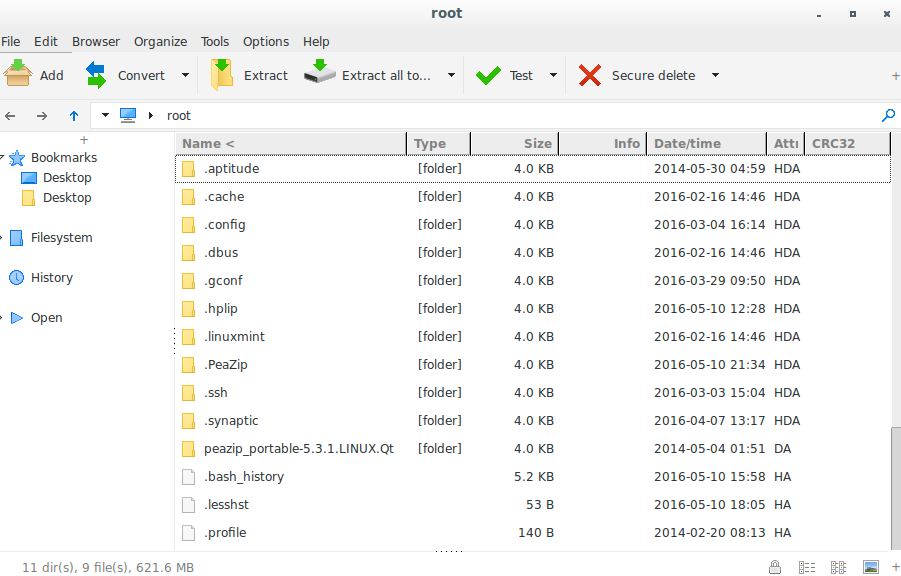
Not everyone is comfortable using the command line, and that’s perfectly fine. Most Linux desktop environments include graphical file managers (like Nautilus in GNOME, Dolphin in KDE, or Thunar in Xfce) that offer built-in compression and decompression features. You can typically right-click on a file or directory and choose an option like “Compress…” or “Create Archive…”.
Dedicated archiving tools like Ark (KDE) and File Roller (GNOME) provide more advanced features and support for a wider range of archive formats. These tools offer a user-friendly interface for creating, extracting, and managing archives without having to remember complex command-line syntax. While these tools are convenient, they often abstract away the underlying details of the compression process. If you want full control and flexibility, the command line is still the best option.
Troubleshooting Common Issues
Corrupted archives are a frustrating problem. This can happen due to disk errors, incomplete transfers, or software bugs. To verify the integrity of an archive, you can often use the `tar --verify` option during extraction. This will check if the files in the archive match the stored checksums. Permission errors can also occur, especially when extracting archives created by a different user or on a different system. Ensure you have the necessary permissions to write to the destination directory.
Slow compression or decompression can be caused by several factors, including CPU load, disk I/O, and the compression algorithm being used. Try closing unnecessary applications and ensuring you have enough free disk space. If you’re using a slow compression algorithm, consider switching to a faster one. If decompression fails, try using a different decompression tool or checking the archive for errors.
Disk space issues can arise when creating large archives. Before starting the compression process, make sure you have enough free space on the destination drive. You can use the `df -h` command to check disk space usage. If you run out of space during compression, the process will likely be interrupted and the archive may be incomplete. Always plan ahead and ensure you have sufficient storage capacity.

No comments yet. Be the first to share your thoughts!