
plan around the directory tree
Linux file management begins with understanding how the operating system organizes data. Unlike Windows, which uses drive letters like C:\ or D:\, Linux uses a single inverted tree structure. Every file and folder stems from the root directory, represented by a forward slash /. This hierarchy simplifies navigation because you always know exactly where you are relative to the system's core.
To move through this structure, you will primarily use two commands: pwd and cd.
Know your location
Before moving, verify your current position. The pwd (print working directory) command displays the absolute path of your current folder. Absolute paths start from the root /, providing a complete route regardless of your previous location.
pwd
Move between folders
The cd (change directory) command moves your terminal context. You can move forward into a subdirectory or backward to a parent folder.
- Move down:
cd documentsenters thedocumentsfolder inside your current location. - Move up:
cd ..moves you one level back to the parent directory. - Go home:
cdwithout arguments instantly returns you to your user home directory.
List what’s inside
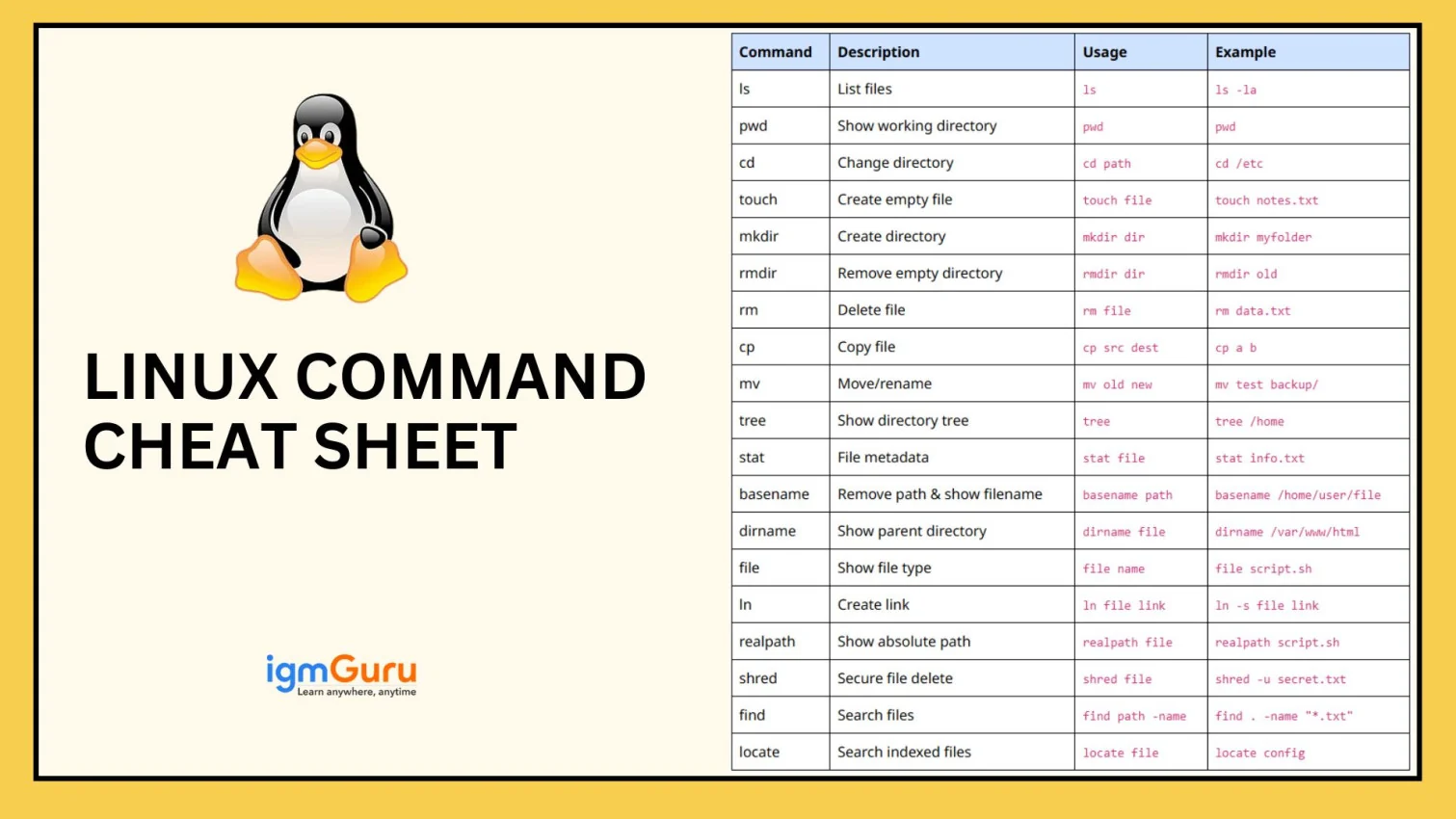
Once you are in a directory, use ls to see its contents. By default, ls lists files alphabetically in a single column. To see detailed information like file sizes, permissions, and modification dates, use the -l flag.
ls -l
You can also filter results. Use ls -a to show hidden files (those starting with a dot .), which are often configuration files. Combining flags works too: ls -la shows a detailed list including hidden items.
Create and organize files
Linux file management starts with building the right structure. You need to know how to create new files and directories, and how to view their contents effectively before you start editing or moving data.
Create new files
Use touch to create an empty file. This command updates the file's timestamp if it already exists, or creates a new one if it does not. It is the standard way to initialize a file in Linux file management workflows.
touch newfile.txt
Create directories
Use mkdir to create a new directory. Always use the -p flag to create parent directories as needed. This prevents errors if the parent path does not exist yet and avoids accidental overwrites.
mkdir -p project/docs
View file contents
Use cat to display the entire content of a file in the terminal. For large files, use less to scroll through the content without loading it all into memory at once. This keeps your terminal responsive.
cat newfile.txt
less largefile.log
List directory contents
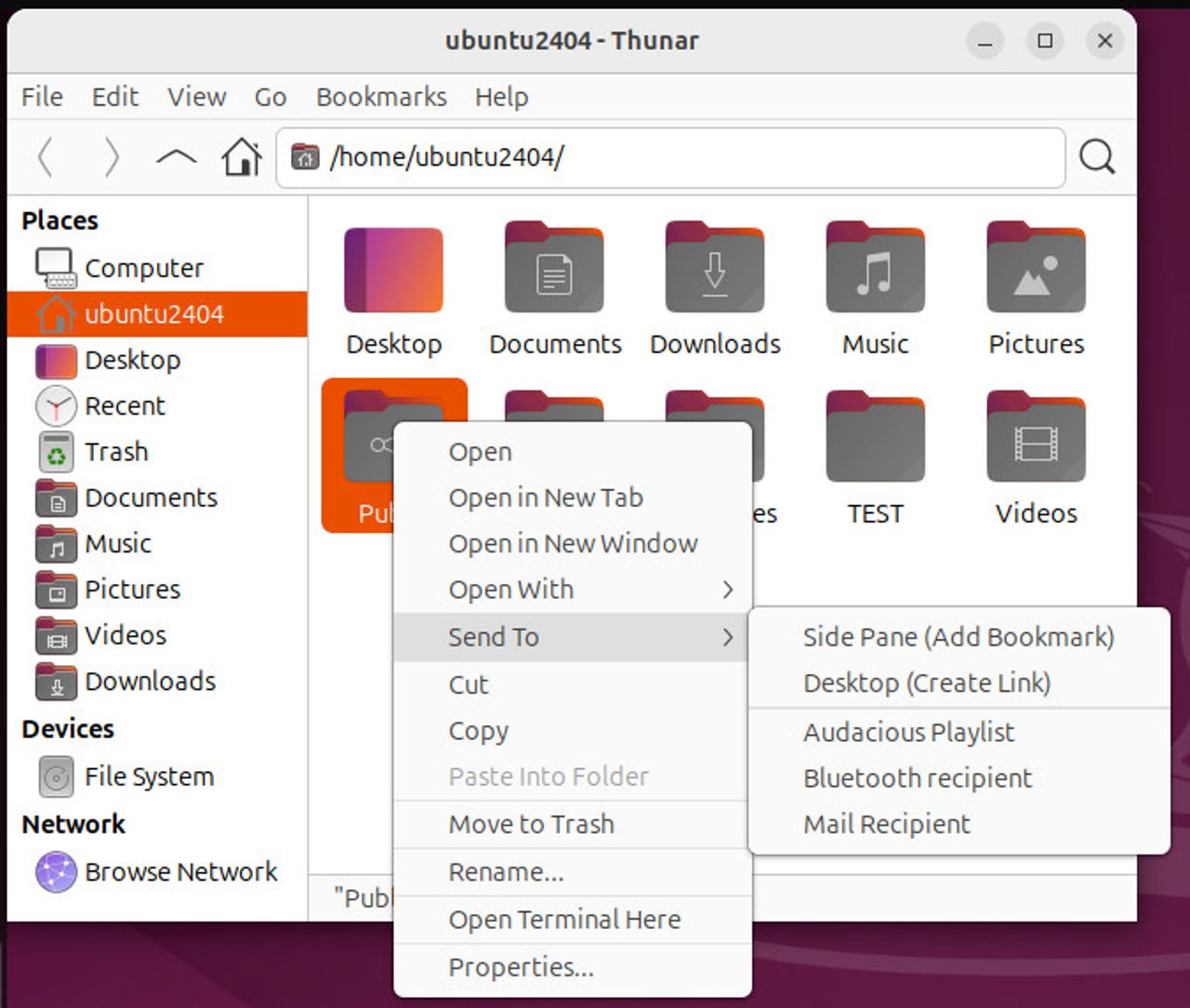
Use ls to list files and directories in the current location. Use the -l flag for detailed information including permissions and sizes. Use the -a flag to show hidden files that start with a dot.
ls -la
Safety flags
Always double-check your commands before running them. Use the -i flag with rm to be prompted before deleting files. This simple step prevents accidental data loss. Use ls -l to verify permissions before making changes to existing files.
Move and copy data safely
When you manage files in Linux, the default behavior of mv and cp is to overwrite existing files without asking. This efficiency is useful in scripts but dangerous in interactive sessions. To prevent accidental data loss, you must explicitly use safety flags. These flags force the system to pause and confirm your intent before overwriting or deleting critical information.
Preview the target location
Before moving or copying, always verify where the data is going. If you are moving a directory, ensure the destination path exists and has the correct permissions. A common mistake is typing the destination name incorrectly, which can result in files being placed in the wrong directory or creating unintended parent directories.
Use ls -la /path/to/destination to check the current state of the target folder. If you are moving a large number of files, consider using ls -l with a glob pattern to see exactly which files will be affected. This step acts as a safety net, ensuring you are operating on the correct set of data.
Execute move/copy with verification flags
The cp command copies files, while mv moves them. To make these commands safe, use the -i (interactive) flag. This flag prompts you with a y/n question before overwriting any existing file. It is the single most important flag for preventing data loss during bulk operations.
# Copy files with overwrite protection
cp -i source_file.txt /path/to/destination/

# Move files with overwrite protection
mv -i source_file.txt /path/to/destination/
If you are copying directories, you must also use the -r (recursive) flag. Without it, cp will refuse to copy a directory and return an error. Combining these flags ensures both depth and safety:
cp -ri -p source_directory/ /path/to/destination/
mv -ri source_directory/ /path/to/destination/
The -p flag is also highly recommended. It preserves file attributes such as modification times, access times, and ownership. This is crucial when backing up data or moving files between systems where metadata integrity matters.
Confirm integrity
After the command completes, verify that the operation succeeded. For cp, check the file sizes and timestamps using ls -l. If you used -p, the timestamps should match the original. For mv, the source file should no longer exist in the original location, and the destination should contain the new file.
If you encounter errors, do not ignore them. Common issues include permission denied (check ownership) or disk space full (check with df -h). Always double-check the destination directory to ensure no files were silently skipped or corrupted during the transfer.
Use ls -la to verify the destination path exists and has the correct permissions. Check for existing files that might be overwritten.
Run cp -ri -p or mv -ri -p. The -i flag prompts before overwriting, -r handles directories, and -p preserves metadata.
Verify the destination files with ls -l. Ensure the source is gone (for mv) and that timestamps and sizes match expectations.
Bundle and compress files in Linux file management
Archiving bundles multiple files into a single container, while compression shrinks that container to save disk space. In Linux file management, tar handles the bundling and gzip handles the shrinking. You often combine both into a .tar.gz file for efficient storage and transfer.
The tar command stands for "tape archive." It collects files and directories into one .tar file. Adding the z flag pipes this archive through gzip for compression. This creates a .tar.gz file that is smaller and easier to move than the original files.
Create a compressed archive
Use the tar command with the c (create), v (verbose), f (file), and z (gzip) flags. The v flag lists the files as they are added, helping you verify the contents. Always specify the output filename immediately after the flags.
tar -czvf archive.tar.gz folder_name/
Extract and verify archives
To restore your files, use the x (extract) flag instead of c. The z flag is still required to decompress the gzip layer. The f flag points to the archive file. Extracting overwrites existing files with the same names, so check your working directory first.
tar -xzvf archive.tar.gz
Safeguard against data loss
Accidental overwrites are a common risk when extracting archives. Use the k (keep) flag to prevent tar from overwriting existing files. If a file already exists, tar skips it and prints a warning instead. This is essential when merging archives or restoring to a directory with existing data.
tar -xzkvf archive.tar.gz
The p (preserve) flag maintains original file permissions and ownership. This is critical for system files or scripts that require specific execution rights. Without p, extracted files may lose their executable status or correct user ownership, causing permission errors later.
tar -xzpvf archive.tar.gz
Automate Linux file management with scripts
Shell scripts transform repetitive commands into reliable workflows. By combining core Linux file management commands like cp, mv, and rm into a single executable file, you eliminate manual errors and save time.
Safety is paramount. Always include the -i (interactive) flag for destructive operations like rm during testing. Use -p with cp to preserve permissions and timestamps. These flags act as circuit breakers, preventing accidental data loss while you refine your automation logic.
Test your script in a safe environment before deploying it to production. Review the find command output before piping it to rm to ensure you are targeting the correct files. This approach ensures your automation remains robust and secure.
Linux File Management Checklist
Before committing changes to your system, run through this quick verification step. A few seconds spent checking paths and permissions prevents irreversible data loss in Linux file management.
- Verify Permissions: Ensure you have the correct ownership or
sudorights for the target directory. Runls -lto double-check read/write/execute flags. - Confirm Paths: Use
pwdandlsto confirm you are in the exact directory intended. Relative paths can lead to accidental deletions. - Backup Critical Data: For destructive operations like
rmormv, create a snapshot or copy first. Usecp -rfor a safety net. - Use Safety Flags: Always append
-ito interactive commands likermandmv. This forces confirmation prompts before any file is overwritten or removed. - Check Destination: If moving files, verify the destination directory exists and has sufficient space using
df -h.
-
Verified permissions with `ls -l`
-
Confirmed current directory with `pwd`
-
Created backup or snapshot
-
Used `-i` flag for interactive confirmation
-
Checked destination space with `df -h`
Common file management: what to check next
Users often hit permission errors or accidental deletions while performing Linux file management. These issues usually stem from misunderstood flags or insufficient privileges. Use the safety flags -i (interactive), -r (recursive), and -p (parents) to prevent data loss.
No comments yet. Be the first to share your thoughts!